Changing the domain on wordpress is a common occurrence, especially among developers who are just starting out in the world of websites.
The idea is the following, you created a site on a test subdomain or on a cheap domain such as .win (250 din for a year) and when the client sees the site and confirms that he likes it, you need to transfer that site to hosting or to his hosting.
For example, you have probnisajt.rs and you want to change it to klientsajt.rs
The right way
is to log in to your site probnisajt.rs/wp-admin/
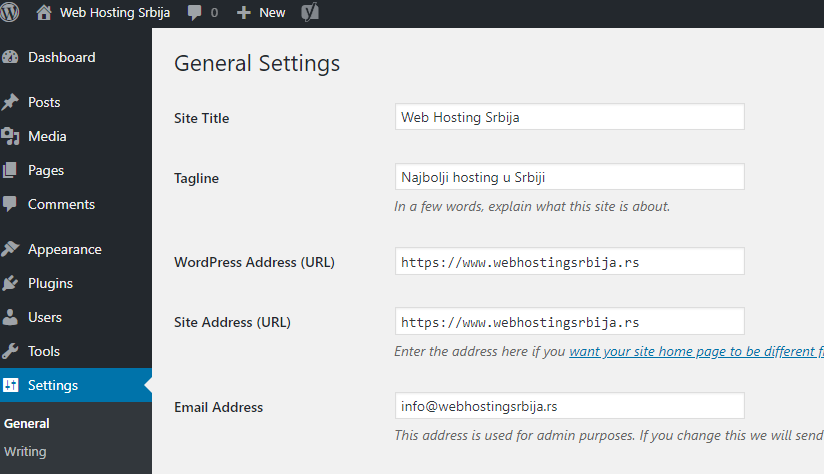
On that page, you see two fields with your domain (probnisajt.rs), what you need is to change it to klientsajt.rs and save it.
This should change and you can access it via the new domain klijentsajt.rs/wp-admin/
Check that everything is fine by opening the site and clicking on the links.
Another way
to change this is via phpmyadmin directly in the database as follows.
Access cPanel and then click on phpmyadmin a new page will open with your database, click on the database on your left where the tables will appear. What you need to do is find the table called
wp_options
this wp underscore is a prefix it can be wp34_ or something completely different but focus on the underscore options it is always the same on every wordpress site. When you left-click on that table on the right, you will see:
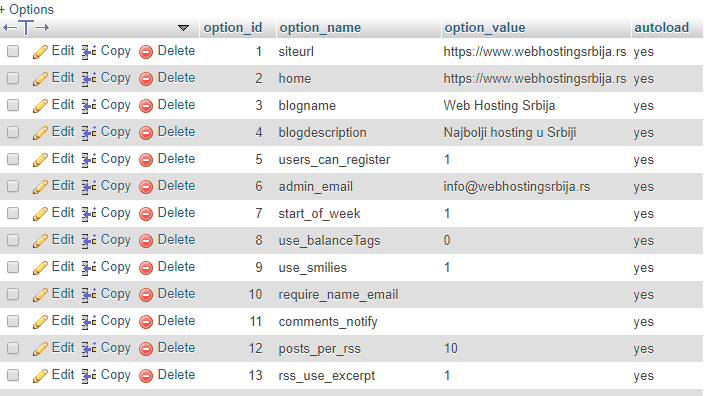
you will see again on the right the link to the site probnisajt.rs, in that row you have Edit, click on edit and change the name of the site to klientsajt.rs and save, do the same for the siteurl field and for home.
After that, open a new domain, i.e. in our case klientsajt.rs and see if everything is fine.
Third way
is by changing the functions.php and wp-config.php files.

How to get to the file as in the picture?
Login to cPanel then click on File Manager, then open public_html (on the left or right side all the same) then in the right half you will see folders (such as wp-admin, wp-content) and files among others and wp-config.php.
Right-click on wp-config.php and go to edit (if a popup appears, just go to edit).
In the new tab, a page with the contents of the wp-config.php file will open. What you need to add there is:
define('WP_HOME','https://klientsajt.rs'); define('WP_SITEURL','https://klientsajt.rs');
When we're done, in the upper right corner you have Save Changes and you can close that window.
Then the next file we change is functions.php. The functions.php file is located in the theme folder.
As you got to the wp-config.php file and your theme, the folder above wp-config.php are wp-admin, wp-content and wp-includes. You need wp-content, open that folder, then when you open it, you need to open the themes folder, and when you open the themes folder, you will see your theme folder, open it as well.
Now that we are in your theme folder find the file called functions.php and right click then edit.
A new tab will open with some codes, it is totally irrelevant for you, what you need to do is add the code
update_option( 'siteurl', 'https://klientsajt.rs' ); update_option( 'home', 'https://klientsajt.rs' );
immediately after.
The example above should look like this:
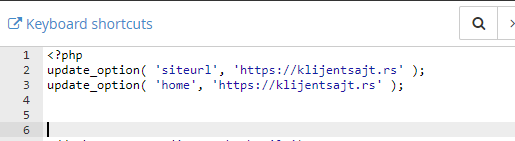
Okay. Now open your new domain ie klientsajt.rs and see if everything is fine, it should be. When you have opened the site, go back to functions.php again right click and edit and delete these two lines that you set and save. That is very important!
This is a replacement for registration via phpmyadmin and the modification of the wp-config.php file is a replacement for wp-admin general settings.
This is the procedure, however it happens that sometimes it returns you to the old domain. There are many reasons and it would not be wise to go into details now.
The solution is to use a plugin.
These plugins will help you to change the old domain to the new one everywhere in the database.
https://wordpress.org/plugins/velvet-blues-update-urls/
https://wordpress.org/plugins/better-search-replace/
This will solve the 99.9% transfer from the old domain to the new one.
Another file you need to look at if it still returns you to the old domain is the .htaccess file located in the public_html folder (in the same place as wp-config.php).
Also right-click on the .htaccess file and edit, and if it says old site somewhere, change it to the new one and save.
If you do not see the .htaccess file in the public_html folder, then go to Settings in the upper right corner and tick Show Hidden Files (dotfiles). You will then see the .htaccess file in the public_html folder and edit it and save it.
That's the whole procedure.